Free invoice generator: how to create a professional invoice in minutes (no sign-up)
How to use a free invoice generator to make a professional invoice in a few minutes, what to put on it, how to get paid faster, and when it's worth moving to invoicing software.
 Billairo team
4 min read
On this page
- Why use a free invoice generator?
- What you need on a professional invoice
- Step-by-step: how to create your invoice
- Best practices for getting paid faster
- Free vs paid invoicing tools: when to upgrade
- Frequently asked questions
- Is a free invoice generator legal to use?
- Do I need to sign up to create an invoice?
- Will the invoice have a watermark?
- Can I use the generator for VAT invoices?
- Can I create invoices in other currencies?
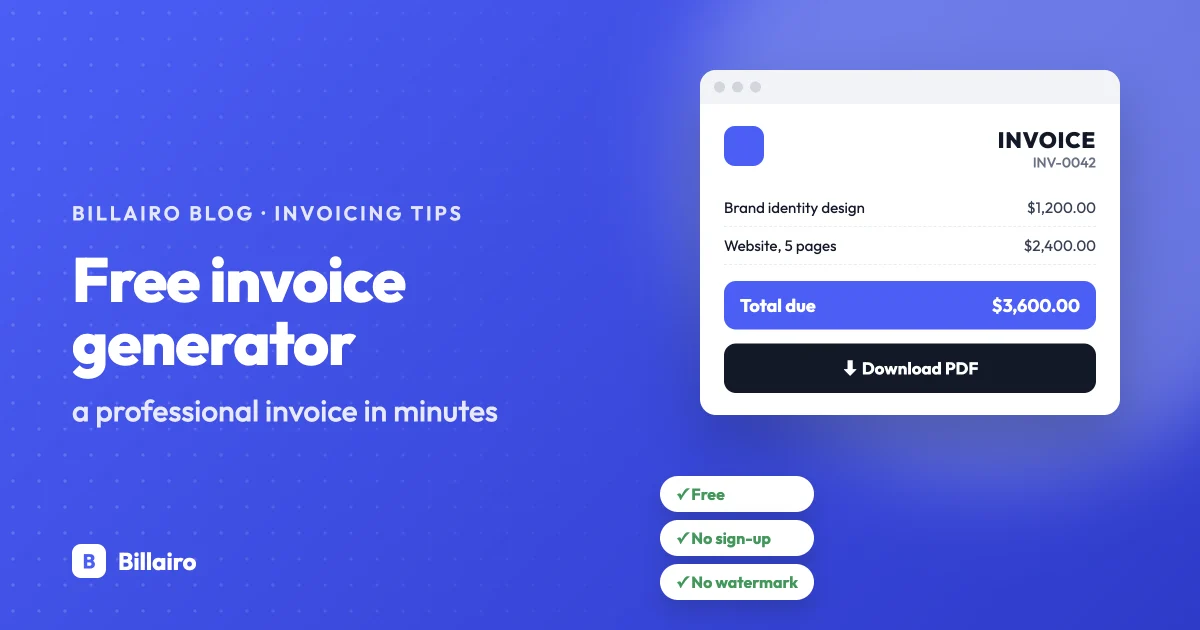
If you need to send an invoice today and don't want to sign up for anything, a free invoice generator is the quickest way to do it: fill in a form, check the preview, download a PDF. This guide shows how to get a professional result in a few minutes, and how to tell when you've outgrown it.
You can follow along in our free invoice generator — no account, no credit card and no watermark.
Why use a free invoice generator?
- It's fast. A good generator lays out the invoice for you, so you only type what's specific to this job.
- It looks professional. A clean, consistent layout makes a better impression than a document you formatted by hand — and clients pay professional-looking invoices with fewer questions.
- The maths is done for you. Line totals, discounts, tax and the grand total add up automatically, so there are no embarrassing calculation mistakes.
- Nothing to install or learn. It works in your browser on any device.
- No commitment. You don't need an account to make your first invoice, which is ideal if you invoice occasionally or are just starting out.
What you need on a professional invoice
Before you start, have these ready:
- Your business name, address, email and phone (and your logo, if you have one)
- Your tax or VAT number, if you're registered
- Your client's name, company and billing address
- An invoice number — the next one in your sequence (see how to number invoices)
- The invoice date and the due date
- A clear description of each product or service, with quantities and prices
- Any discount and tax that applies
- How you want to be paid: bank details or a payment link
For a deeper look at each part, read how to write an invoice.
Step-by-step: how to create your invoice
- Open the generator and add your business details. A good generator remembers them in your browser, so next time they're already filled in.
- Upload your logo (PNG, JPG or WebP). It's a small touch that makes the invoice instantly recognisable.
- Add your client in the "Bill to" section: name, company and address.
- Set the invoice details: invoice number, invoice date, due date and currency. Add the client's purchase order (PO) number if they gave you one.
- List the work: one line per product or service, with quantity and unit price. Add sub-items under a line if you want to show what's included.
- Add discounts and tax if they apply. Watch the total update as you go.
- Write your payment terms and details: when payment is due and how to pay.
- Check the live preview exactly as your client will see it, then click Generate PDF Invoice.
- Send it: attach the PDF to an email with the invoice number and amount in the subject line.
Tip: keep a copy of every invoice you send. You'll need them for your records and your tax return.
Best practices for getting paid faster
- Invoice the day you finish the work. The sooner the invoice arrives, the sooner it gets paid.
- Use a short, specific due date. "Due 28 November" works better than "due on receipt". Read our guide to invoice payment terms.
- Be precise in your descriptions, so nobody has to email you with questions before approving it.
- Make paying easy: clear bank details, and a card or PayPal link if your client prefers that.
- Follow up politely a few days before the due date, and again if it passes. More ideas in how to get paid faster.
Free vs paid invoicing tools: when to upgrade
A free generator is perfect for occasional invoices. It starts to cost you time when:
- you re-type the same clients and items every time;
- you have to remember which invoice number comes next;
- you're not sure who has paid and who hasn't;
- you chase late payments by hand;
- you bill the same clients every month;
- you need quotes, credit notes or invoices in different currencies and languages.
| Free generator | Invoicing software | |
|---|---|---|
| Create and download PDF invoices | Yes | Yes |
| Saved clients and items | No (business details only, in your browser) | Yes |
| Automatic invoice numbering | No | Yes |
| Email invoices and see when they're opened | No | Yes |
| Track payments and what's overdue | No | Yes |
| Automatic reminders and recurring invoices | No | Usually on paid plans |
Billairo has a free plan for when you're ready: your clients, invoices and payments in one place, with no credit card required. If you made an invoice in our generator first, it comes with you when you sign up.
Frequently asked questions
Is a free invoice generator legal to use?
Yes. What matters is what's on the invoice, not the tool you made it with. As long as it includes the details your country requires, an invoice from a free generator is as valid as any other.
Do I need to sign up to create an invoice?
Not with Billairo's generator. You can create and download invoices without an account.
Will the invoice have a watermark?
No. The PDF shows only your business, your logo and your client's details.
Can I use the generator for VAT invoices?
Yes, as long as you add the details a VAT invoice needs, such as your VAT number and the tax amount. See our guide to VAT invoice requirements. If you charge different VAT rates on different lines, invoicing software that calculates tax per line is easier.
Can I create invoices in other currencies?
Yes. Choose the currency in the invoice details and every amount on the PDF uses it.