
Add and manage clients
Save client details once, see what each client owes, and filter clients by balance.
Updated 13 November 2026 · View as Markdown
Add a client
- Go to Clients → New client (or add one straight from an invoice or quote).
- Enter the name, and if it's a business, the company name.
- Add their email (needed to email invoices), phone (include the country code so WhatsApp works), address and private notes.
- For business clients, add their country and VAT number, and choose Tax on their invoices (for example reverse charge for a business in another EU country). See Set up tax and VAT.
- To add a second address, such as where you ship or where you work, click + Add under the address and choose its heading (Ship to, Service address, Job site…). It's printed on their invoices and quotes under the billing address.
- Set the status: Lead, Active or Deactivated. Deactivated clients are hidden from the client picker on new invoices and quotes.
- Click Save client.
Find clients
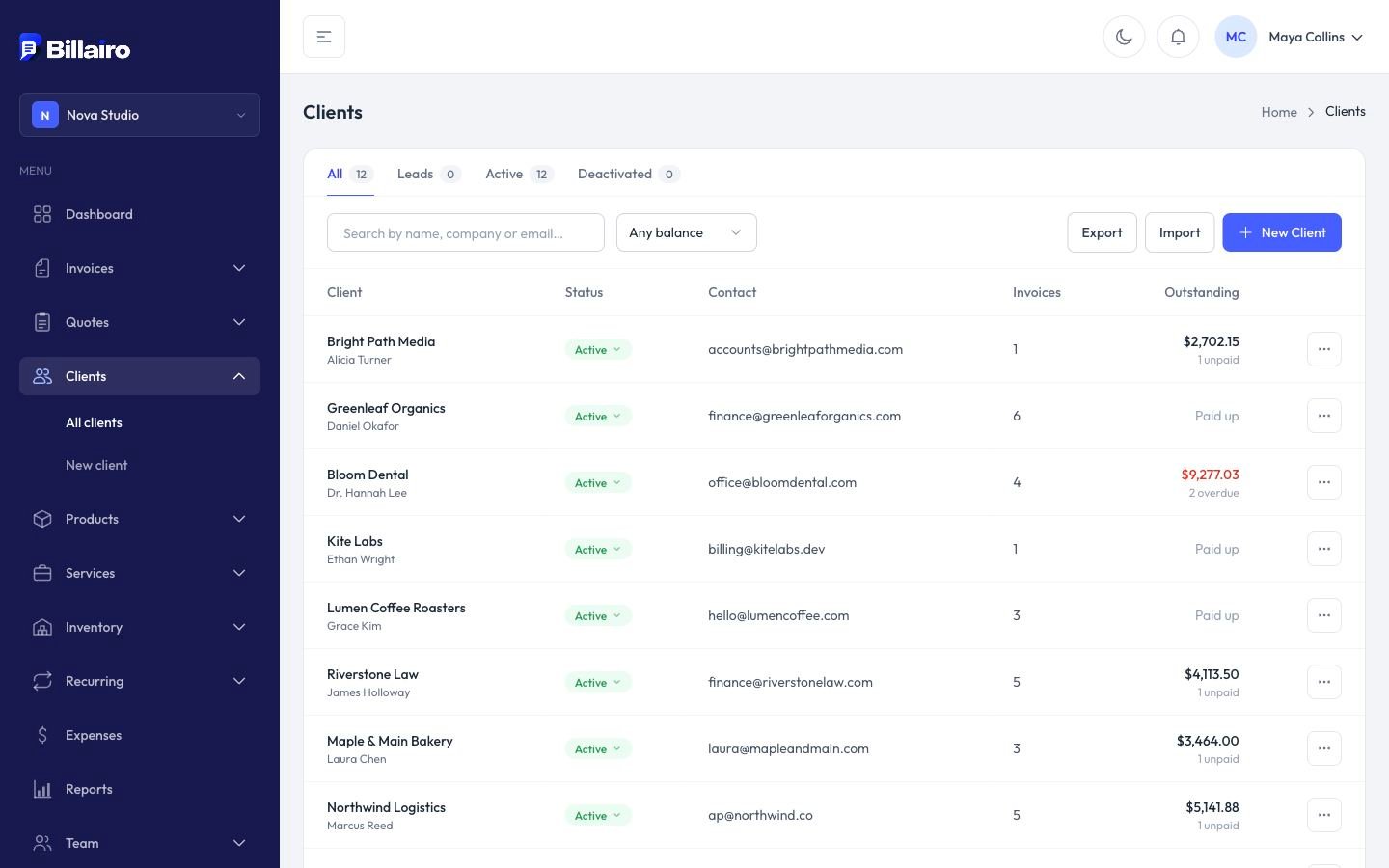
The client list shows each client's invoices and outstanding balance. Filter by status or by balance (Overdue, Owes money, Paid up, No invoices yet), or search by name, company or email.
A client's page
Open a client to see every invoice, quote and payment, what they owe, and their activity. Click New invoice to bill them, or edit them to set their own currency and language.