
Create and send a quote
Price up work for a client, send it for approval, and track whether it was accepted.
Updated 20 November 2026 · View as Markdown
Quotes work like invoices, but they're an offer: nothing is owed until the client agrees.
Create a quote
- Go to Quotes → New quote.
- Pick the client, add line items, discounts and tax, just like an invoice.
- Set the valid until date, or leave it without an expiry date.
- Under Terms & notes, add any terms for this quote, for example This quote is valid for 30 days.
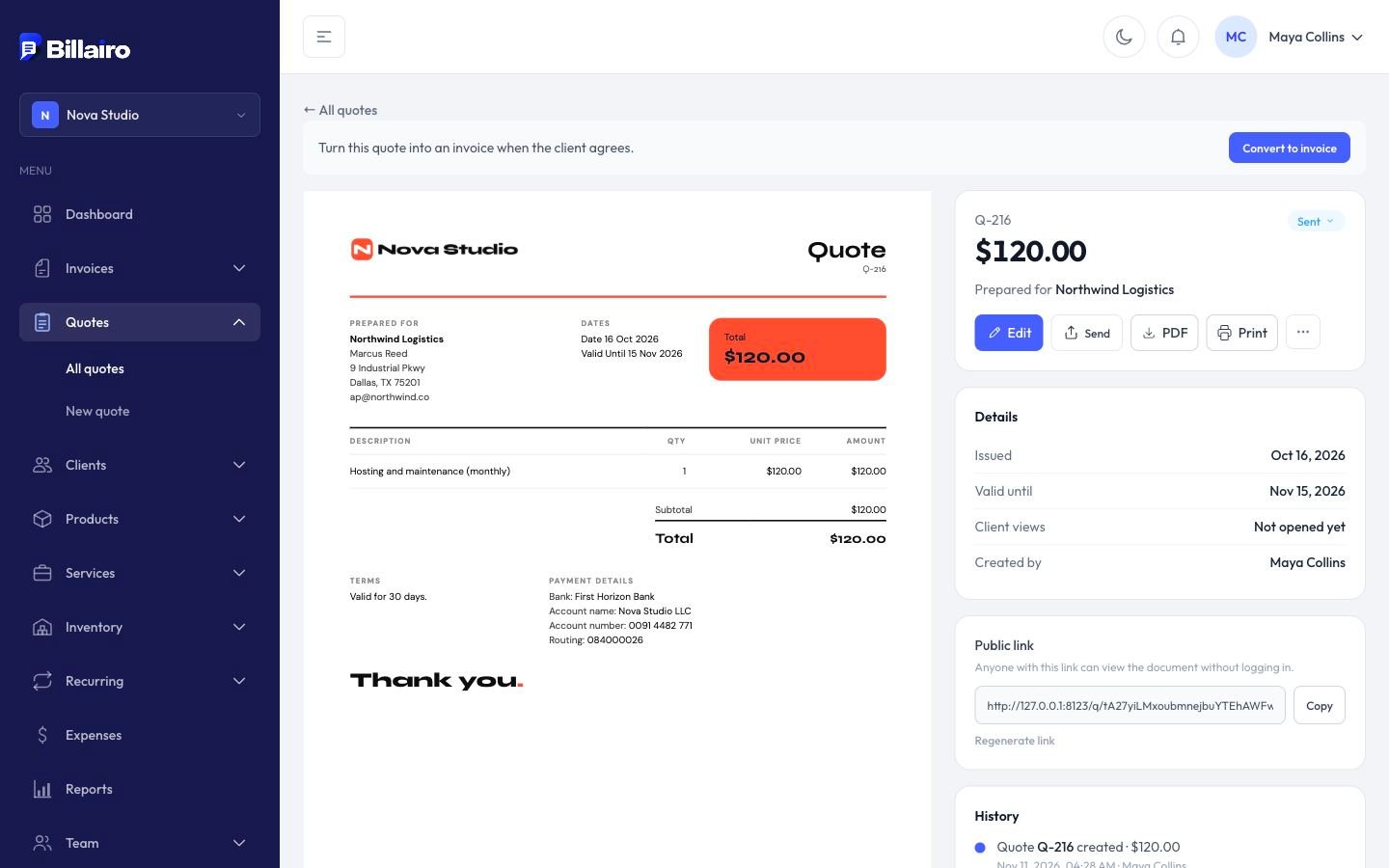
- Save, then send it with Send (email with PDF, WhatsApp, link or PDF).
Track the answer
The quote link has Accept and Decline buttons. To accept, the client types their name (and can add a message); to decline, they can give a reason. The quote is marked Accepted or Rejected straight away, you get a notification and an email, and the quote page shows the Client response: who accepted, when, and their message. Expired quotes can't be accepted; the client is asked to contact you instead.
You can still set the status yourself as things happen: Sent, Accepted, Rejected, Expired or Cancelled. Setting an answered quote back to Sent clears the client's answer, so they can respond again. The quote page shows Client views, so you know if they've opened it.
Duplicate
Click Duplicate to start a new quote from an existing one.