
Get paid online with pay links and QR codes
Add your PayPal, Stripe, Revolut or Wise links so clients can pay from the invoice, and print QR codes on your PDFs.
Updated 13 November 2026 · View as Markdown
Add your pay links
- Go to Settings → Payment details.
- Under Pay links, click + Add a pay link.
- Choose the provider (PayPal, Card (Stripe), Revolut, Wise or another) and paste your link, for example
https://paypal.me/yournameor a Stripe Payment Link. - Optionally change the button text, then save.
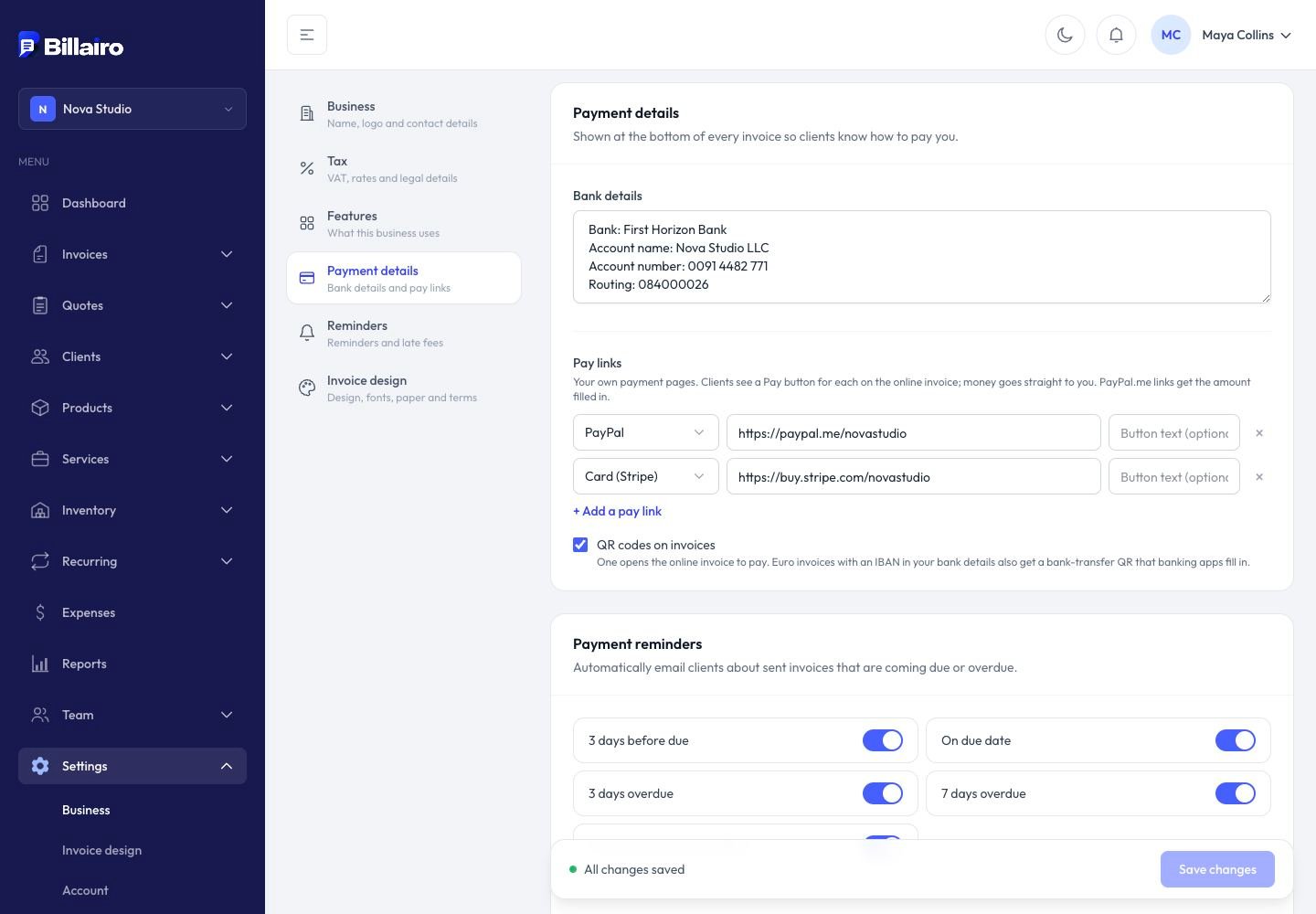
The money goes straight to your own account; Billairo doesn't take a fee.
What your client sees
The online invoice shows a Pay with… button for each link while something is still owed. PayPal.me links open with the amount and currency already filled in.
QR codes on invoices
With QR codes on invoices ticked, every open invoice PDF gets:
- a QR code that opens the online invoice, to pay or download it, and
- for invoices in euros, when your bank details include an IBAN: a bank-transfer QR code (EPC / GiroCode). Scanned in a banking app, it fills in your IBAN, the amount and the invoice number.
Paid invoices don't show them.