
Add your business details and logo
Set the name, logo, address, currency and bank details that appear on every invoice and quote.
Updated 12 November 2026 · View as Markdown
Everything you set here appears on your invoices, quotes and emails, so it's worth doing before you send the first one.
Business details
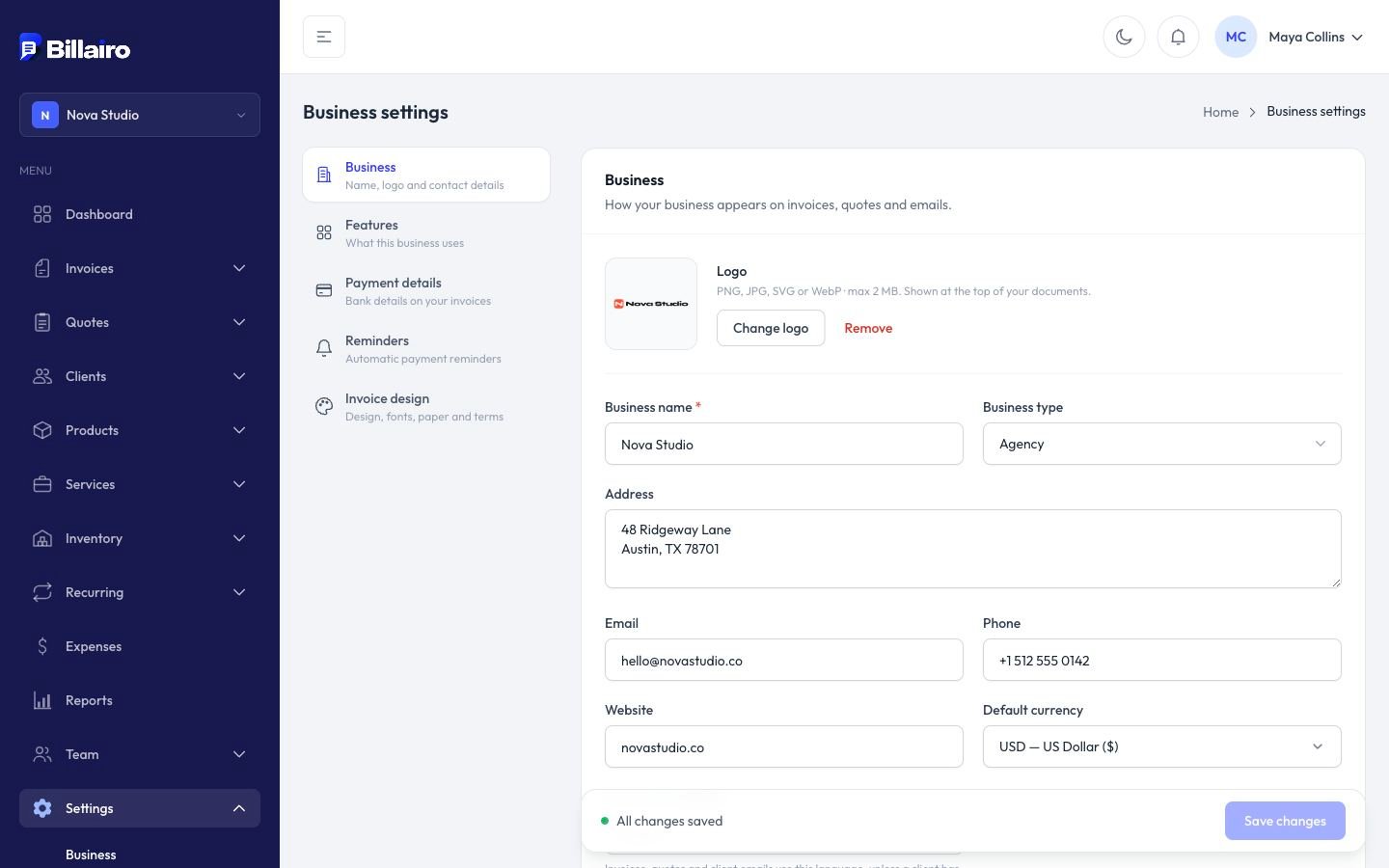
- Open Settings → Business.
- Under Business, upload your logo (PNG, JPG, SVG or WebP, up to 2 MB). It's shown at the top of your documents.
- Fill in the business name, address, email, phone and website.
- Choose your default currency: new invoices and quotes start in it.
- Choose the document language: invoices, quotes and client emails use it, unless a client has their own language.
- Click Save changes.
Payment details
Open the Payment details section and enter your bank details (account name, number, sort code or IBAN, or any instructions). They're printed at the bottom of every invoice so clients know how to pay you.
Payment reminders
In Reminders, switch on automatic payment reminders. See Automatic payment reminders for when they're sent.